Veo 3 Voice Changer for Consistent Character Voices
Fix character voices across separate Google Veo 3.1 clips. Swap speech to one selected voice in the same language while preserving the video frames and ambient SFX.
- Same language, never translated
- Picture untouched
- Music and sound effects kept
Why Veo 3.1 Clips Lose Voice Continuity Across Cuts
- 1
Inconsistent voices between generations
At the time of writing, Google Veo 3.1 generates short clips of about 8 seconds. Reviewers report that a character's voice often changes between separate generations, breaking continuity when you stitch scenes together.
- 2
Regenerating risks losing the perfect shot
Trying to fix an inconsistent voice inside native-audio video generators requires rerolling the entire prompt. That wastes credits and generates an entirely new picture, losing your chosen camera angle, action, and timing.
- 3
Manual dubbing erases built-in sound effects
Muting a Veo 3.1 clip to overlay a new voice recording removes all generated Foley, room tone, and background sound effects. You are then forced to manually rebuild the entire soundscape from scratch.
Voice Consistency Across a 4-Clip Veo Timeline
| Raw Stitched Veo 3.1 Clips | Processed with DubSI Voice Swap | |
|---|---|---|
| Clip 1 (0:00 - 0:08) | Voice A (native Veo speech) | Chosen character voice applied |
| Clip 2 (0:08 - 0:16) | Voice B (native Veo speech switches tone) | Same chosen character voice matched |
| Clip 3 (0:16 - 0:24) | Voice C (pitch and cadence drift) | Same chosen character voice matched |
| Clip 4 (0:24 - 0:32) | Voice D (different accent and timbre) | Same chosen character voice matched |
| Background audio | Original Veo ambience and SFX | Original Veo ambience and SFX preserved |
| Video visuals | Original generated frames | Untouched original video frames |
At the time of writing, Google Veo 3.1 creates short clips where character voices can shift across runs. DubSI Voice Swap updates only the spoken audio; it does not translate or alter visuals.
How to Unify Character Voices in 3 Steps
- 1
Upload your stitched Veo video
Upload your MP4, MOV, WEBM, or MKV file (up to 2 minutes on the free trial). The video must already feature spoken dialogue.
- 2
Choose your character's voice
Select a voice from the library, create one with custom age, gender, and pitch attributes, or clone a voice using a 4–30 second consent-verified sample.
- 3
Review segments and export
Use the studio to audition segments, check flagged pronunciation warnings, and export your video, WAV audio, or SRT subtitles.
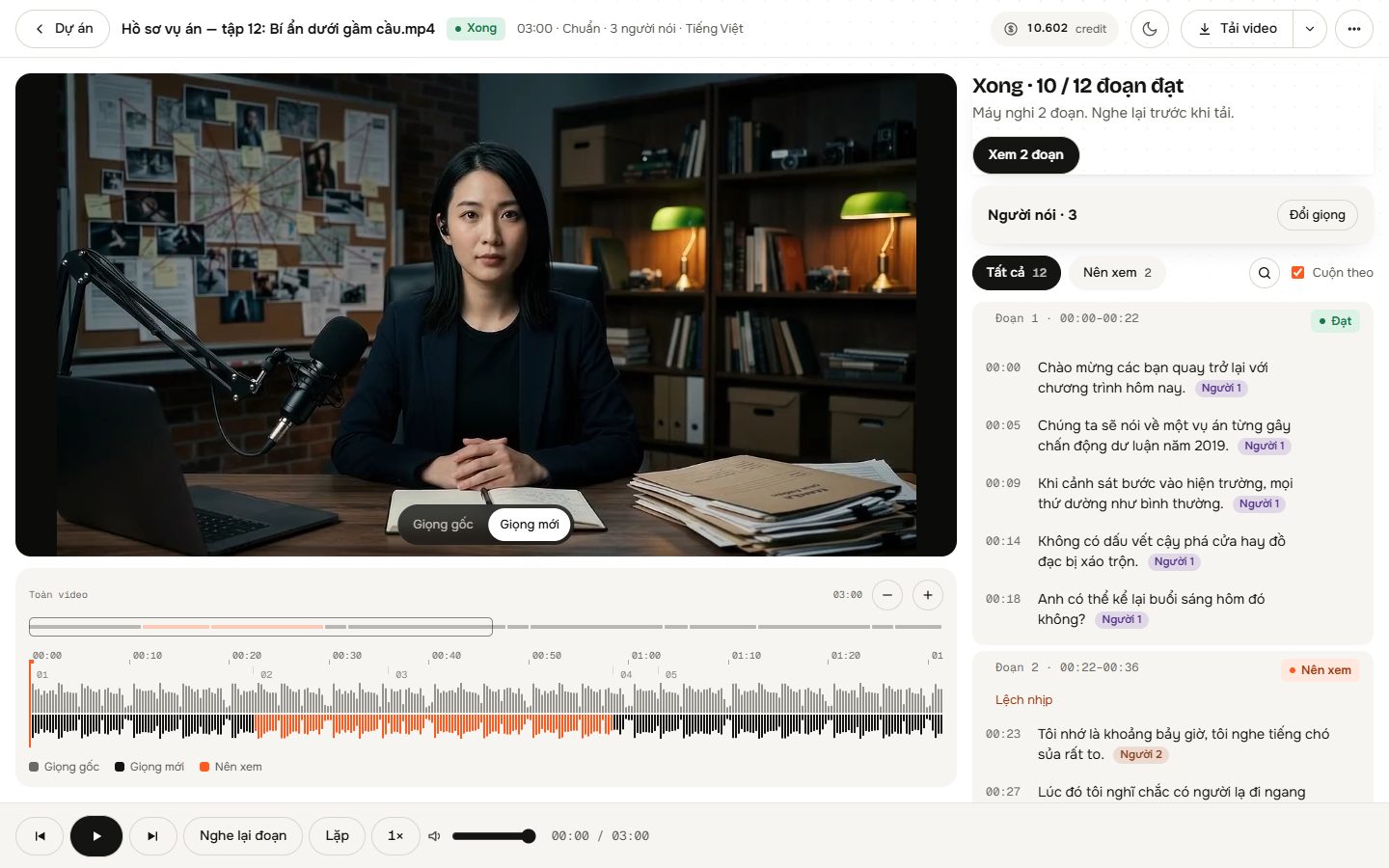
Engineered for AI Video Post-Production
Preserves native ambience and SFX
AI isolates spoken dialogue from the background track, swaps the voice, and blends the new performance back over Veo's original ambient sound and Foley.
Sentence-by-sentence lip-sync timing
The replacement voice follows the exact timing and cadence of the original speech sentence by sentence, keeping your character's on-screen mouth movements aligned.
Realistic emotional cues
Natural vocal expressions like laughter and sighs are re-performed in the selected voice rather than being deleted or left in the previous voice.
Automatic singing preservation
Singing segments are detected and preserved in their original form, ensuring musical moments remain untouched during voice replacement.
Multiple speaker detection
AI tracks who is talking using audio and video frames. Assign up to 4 distinct voices in multi-speaker mode or let Auto mode map speakers by gender and age.
In-studio quality check
The built-in quality tool listens back to converted audio, flags potential mispronunciations, and lets you toggle back to the original audio segment anytime.
Where to Use a Veo 3 Voice Changer
Multi-scene Veo storytelling
Maintain voice continuity for your main character across multiple 8-second Veo 3.1 clips without re-prompting image generations.
Custom brand & avatar voices
Replace generic generated vocal profiles with a custom-designed voice or your own consent-backed cloned voice across finished AI scenes.
Multi-character dialogues
Assign clear, distinct vocal identities to different characters in a shared Veo scene, avoiding accidental vocal overlap between shots.
Pay-As-You-Go Pricing
Swap voices across your Veo generations without recurring subscriptions. Standard processing is $0.06 per minute, billed by the second. Test your clips with 1,500 free credits upon sign-up.
- No subscription required; purchase pay-as-you-go credits
- 300 credits per minute of video at Standard tier ($0.06/min)
- Automatic credit refund if processing fails from a system error
- New accounts receive 1,500 free credits to get started
Frequently asked questions
Does it translate to another language?
No. DubSI Voice Swap does not translate dialogue into other languages. Any mention of dubbing refers to re-voicing the existing dialogue in the exact same language using a different vocal profile.
Does the video need speech already?
Yes. DubSI Voice Swap replaces existing spoken dialogue. It cannot generate speech from silence or text prompts; your Veo 3.1 video must already include audible spoken words.
Does DubSI Voice Swap edit or regenerate the video frames?
No. The video picture is completely untouched. The replacement voice is matched to the exact timing of the existing dialogue sentence by sentence, keeping original mouth movements aligned.
What happens to Veo's background music and sound effects?
AI isolates the dialogue from the audio track. The replacement voice is then mixed back over the original background music, room ambience, and Foley sound effects.
How does DubSI Voice Swap handle multiple characters in one Veo clip?
The tool analyzes both audio and video frames to detect distinct speakers. You can assign up to 4 different voices manually, or use Auto mode to map voices based on detected gender and age.
Can I bring my own voice for my Veo character?
Yes. You can add a custom voice by uploading or recording a clean 4 to 30 second audio sample, provided you have the speaker's explicit consent.
Give Your Veo 3.1 Character One Consistent Voice
Upload your Veo clips, select your preferred voice, and unify dialogue across every scene while protecting your background audio.
Start with Free Credits